

Topic AI allows you to refine how Generative AI categorizes your data to ensure it aligns with your specific business needs. By enriching and tuning models, you can transform raw interaction data into actionable business intelligence.
Understanding the Model Lifecycle
To get the most out of Topic AI, follow the recommended workflow:
Enrich → Review/Lock → Edit/Modify → Update → Publish
|
Action |
Description |
|---|---|
| Enrich (Re-enrich) | Enrich the model again with a new or updated Topic AI collection as new data becomes available. |
| Edit/Modify | Clone the enriched model into an editable version. You can rename, merge, move, or remove intents/actions. |
| Update | Finalize edits on a modified model and prepare it for publishing. |
| Publish | Make the model available for use. Published models are highlighted in the Models dropdown. |
| Delete | Remove enriched, modified, or editable models. Base models cannot be deleted. |
Enrich Model
Enrichment uses the TAS 5.7 engine to analyze your organization's specific customer data.
Topic AI uses TAS 5.7 engine to analyze your organization's specific customer data. It analyzes approximately 40,000 interactions to identify new and unused intents/actions. If fewer than 40,000 interactions are available, the system uses all available data. Enrichment enhances the standard model with real interaction examples, creates new Intents and actions and removes intents or actions that do not have supporting samples. It creates new L1 Topic Categories for unrecognized data patterns instead of grouping them into a general "Other" category. This ensures that even rare business processes are captured as distinct intents or actions.
With support for multilingual collections, Topic AI now handles data containing multiple languages. The Topic AI includes a language selection during the enrichment process. This selection ensures that the AI engine accurately generates and translates all intent and action labels into your preferred language for analysis.
-
Single-language collections: If the selected collection contains only one language, the system automatically identifies it. The Main Language field displays that specific language and is read-only to ensure consistency.
-
Mixed-language collections: If the collection contains more than one language, the Main Language dropdown is enabled. You can select your preferred translation language from the list of all supported languages. If no selection is made, the system defaults to English.
Note: If the system cannot determine the specific languages within a mixed collection, the dropdown will provide the full list of supported languages for you to choose from manually.
With an enriched model, you can perform the following tasks:
-
View Enriched Examples: Review how the AI has categorized specific examples from your customer data.
-
Identify New Topics: View added intents and actions discovered by the AI during the enrichment process.
-
Track Model Changes: View removed intents and actions, which appear struck through in the interface to indicate they are no longer part of the active model.
To enrich a model:
-
Select a model from the Model Switcher in the top navigation bar. To select another model, click Home .
-
Click Options in the top right corner of the page, then select Enrich.
-
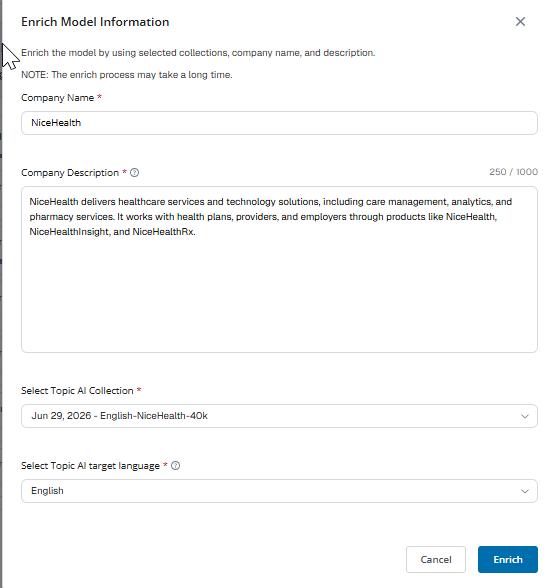
In the Enrich Model Information window, select Enrich to start the enriching process.
-
Complete the following fields:
-
Edit the company description if required.
-
Select the appropriate collection from the Select Topic AI Collection drop-down.
-
Select the language to be used for translating intent and action labels from the Select Topic AI Target Language.
-
-
Click Enrich. The enrichment process uses customer interaction data from the selected collection to create an enriched model that retains the original model while adding new intents and actions.
Note: If no Topic AI collections are available, create one using the Save to Collection option in Interaction Analytics (CXone) Search application. For more information refer to the section, Create a Topic AI Collection. You can also create a collection, from the Interactions Hub. For more information refer to the section, Create a Topic AI Collection.
Newly created collections may take up to one hour to appear in the Topic AI > Select Topic AI Collection list.
After you create a collection, it takes about 20–30 minutes before it appears in the Topic AI > Select Topic AI Collection dropdown.
-
Enriching a model takes around 6 hours.
Best practice: start enrichment as the last task of your day and review the enriched model the following day.
-
A model that has already been enriched can be enriched again by selecting Options and clicking Enrich. This allows users to continue refining the model as new data becomes available.
-
Click Update and publish the enriched model.
 View image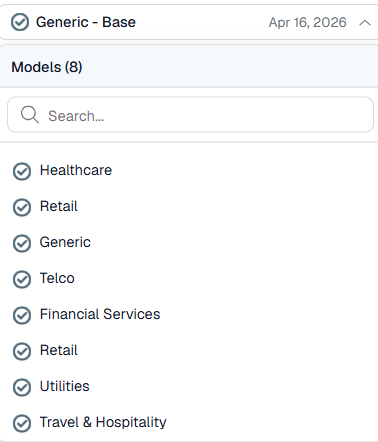
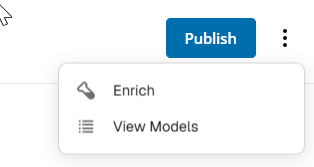
A model that has already been enriched can be enriched again by selecting Options and clicking Enrich . This allows users to continue refining the model as new data becomes available.
Limitation: For each out-of-the-box (OOTB) model, only one derived model can be under work at a time. If a model is in Enriching, Updating, or Edit mode, you must first update the editable model before starting another enrichment. After the update is complete, you can enrich again using the base, enriched, or modified model.
Validate Model Quality
Topic AI uses LLM as a Judge (powered by Claude Sonnet 4.6) to provide immediate, automated feedback on your model's accuracy. To ensure the highest quality results, you should validate both the AI metrics and the underlying data source:
-
Sample Size Check: For optimal accuracy, ensure your sample size is equal to or as close to 40,000 interactions as possible. Smaller sample sizes may lead to less granular subtopics or lower accuracy scores. For the most relevant and up-to-date business insights, it is important to filter your interaction collection to the last 90 days.
-
Collection Validation: Verify that the model was enriched from the correct Data Collection. This ensures the intents and actions identified are relevant to the specific business unit or time period you intended to analyze.
-
Parent Model Tracking: Review the Parent Model from which your current version was derived. Maintaining visibility of the lineage helps ensure consistency when moving from a Base model to a highly customized Enriched model.
AI Performance Metrics
Once the data source is validated, use the Overview dashboard to monitor performance:
-
Overall Accuracy: Located on the Overview page, this shows the percentage of interactions that the AI judge confirms are correctly categorized.
-
Low Accuracy Topics: Use this widget to identify subtopics where the AI-generated name may not perfectly match the interaction examples. Renaming these subtopics will trigger a re-validation to improve the score.
-
Reviewing Examples: Click any subtopic to open the Information Panel. You can now view up to 50 sample sentences to manually verify that the AI's categorization matches your business expectations.
Tune and Modify Models
Once a model is enriched, you can manually tune it to match your business terminology.
Lock Subtopics
Before running a new enrichment or making bulk edits, you can Lock important subtopics.
-
Locked subtopics are protected from being renamed, moved, or removed by the AI engine during future enrichment cycles.
-
To lock a topic, select the subtopic card and click the Lock (padlock) icon.
Edit/Modify Model
To make manual changes, you must first put the model into Edit mode. You can edit/modify an enriched model. With a modified model, you can:
-
Rename intents/actions at any level
-
Merge intents/actions at Topic and Subtopic levels
-
Move intents/actions at Topic and Subtopic levels
-
Remove intents/actions at any level
To edit/modify a model:
-
Select your enriched model and click Edit from the top-right options.
-
The model is cloned into an editable version.
Refer to the Modifying Models page for more information on tuning options.
-
Rename: Change the labels of Categories, Topics, or Subtopics.
-
Merge/Move: Drag and drop subtopics to consolidate similar intents or reorganize the hierarchy.
-
Remove: Delete topics that are not relevant to your reporting.
-
After you have finished modifying the model, click the Publish button located at the top right corner of theTopic AI page.
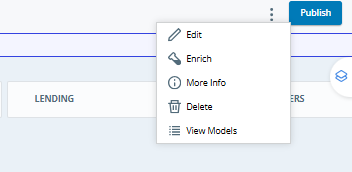
A modified model can be enriched again by selecting Options and clicking Enrich. This allows users to continue refining the model as new data becomes available.
Update Model
You can update Enriched/Modified models to prepare them for use.
To update a model:
-
After finishing your manual edits, click Update. This finalizes the structure and prepares the model for deployment. Note that this process takes time.
-
Once the model is updated, it is marked as Modified.
Publish model
You can publish out-of-the-box (OOTB) vertical models, enriched models, or updated models (marked as Modified) based on your business requirements.
To publish an enriched model:
-
After enriching the model, click Publish to make the model available. Published models are highlighted in the Model Switcher dropdown.
Note: Only one version of a model can be in an "Enriching" or "Updating" state at a time.
Delete Model
To delete a model
-
Select the model from the top navigation bar.
-
Click the Options menu and select Delete.
Note: You can only delete enriched, modified, or editable models. Base (Out-of-the-Box) models cannot be deleted.
View Vertical Models
To view the models:
-
Click Options
 located at the top right corner of the Topic AI page.
 -
Select View Models.
-
On the Select Model page:
-
Click on the model tile you want to analyze/enrich. The model is selected, and the Topic AI Overview page appears which provides a high-level summary of your model’s health and performance.
-
In Topic Types, select either Customer Intents or Agent Actions to view the corresponding topics for the selected model.
-