

Model modification allows you to refine the editable version of an enriched model while tracking its progress. You can reorganize customer intents and actions to better align the model with your business needs. Once you are satisfied with the changes, you can publish the updated model for use in NiCE CXone
Managing categories, topics, and subtopics
You can do the following:
-
Categories: Create, Rename, Remove, and Restore.
-
Topics: Move/Merge, Rename, Remove, and Restore.
-
Subtopics: Move/Merge, Rename, Lock, Remove, and Restore.
This helps you keep your model structured and easier to maintain.
Changes you make in the editable model affect how customer intents and actions are detected after you publish the model.
Managing Categories
Categories let you group your intents and actions, making them easier to organize and manage in the Topic AI
Create a category
To create a category
-
Select an editable version of the model.
-
In the right info panel, click New Category +.
-
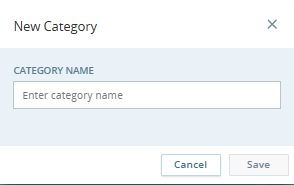
Enter a unique name for the category (maximum 50 characters) and click Save. The new category appears in alphabetical order.
Note: You can create up to 20 categories per model. If you reach this limit, remove an existing category to add a new one.
 View image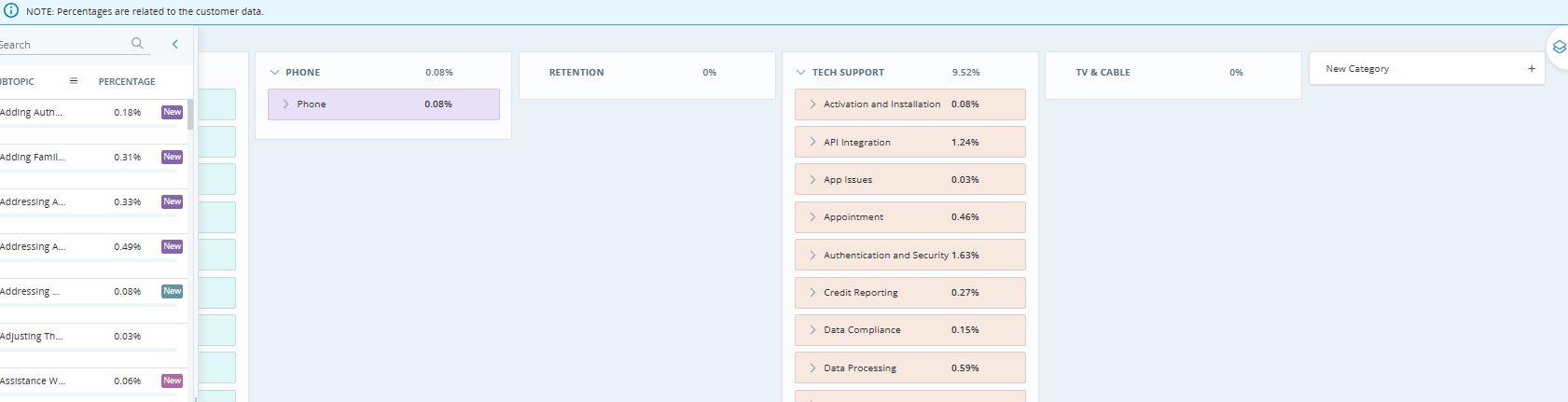
Rename a category
To rename a category:
-
Locate the category, click Options
 and then click Rename.
 -
Enter the new name and click Save.
Remove a category
To remove a category:
-
Locate the category, click Options
and then click Remove.
When you remove a Category:
-
All topics and subtopics under that category are also removed.
-
These are not visible in the UI unless the Removed filter is enabled in the filter panel.
-
Removed items are soft deleted (not permanently deleted) and are hidden by default.
To view removed items:
-
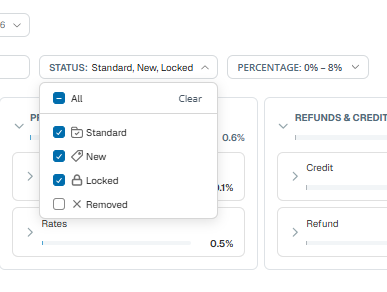
Click the Status filter.
-
Under Status, select the Removed checkbox.
Important: Removing a category affects the entire hierarchy beneath it. Review the topics and subtopics before you confirm the removal.
Special Rule for Automatic Removal:
The Topic AI automatically keeps the hierarchy clean so there are no empty levels:
-
If you remove a topic, all its subtopics are also removed.
-
If you remove the last subtopic under a topic, the subtopic and its parent topic are removed.
-
If all topics under a category are removed, the category is also removed.
Restore a category
To restore a removed category:
-
Select Status filter, and under Status, select Removed.
All removed items are displayed.
-
Find the category you want to restore, and select the Restore
 icon next to it.
When you restore a Category :
-
All topics and subtopics that were removed with that category are also restored.
-
The full hierarchy is restored as it existed before removal.
Note: Removed items are hidden unless the Removed status filter is selected.
Managing Topics and Subtopics
Use topics and subtopics to create a clear hierarchy of customer intents and actions within each category. You can rename, move/merge (where available), remove, and restore topics and subtopics.
Rename a topic or subtopic
To rename a topic or subtopic:
-
Locate the topic or subtopic and click Options
and then select Rename. -
Enter the new name and click Save.
Move or merge topics and subtopics (where available)
To move or merge topics:
-
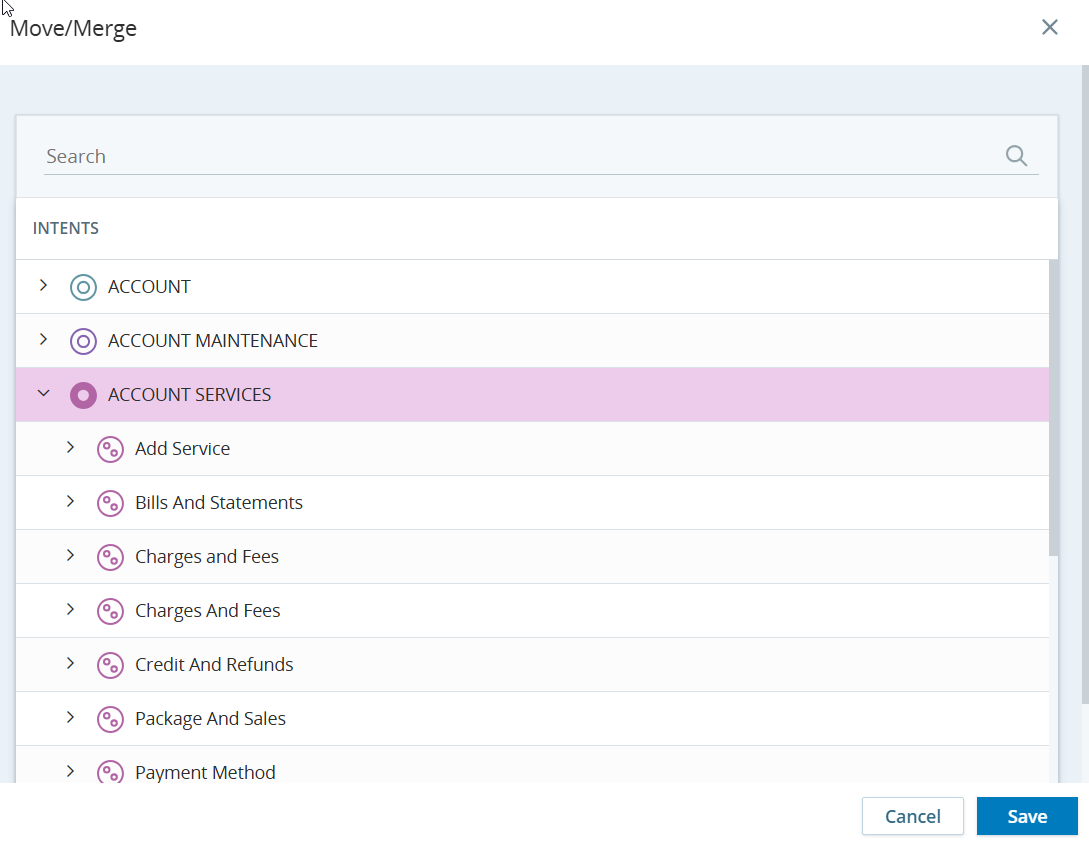
On the topic or subtopic, select Move/Merge.
-
In the dialog:
-
Use the Expand icon to expand items in the Intents section, or
-
Use the Search field to find the target intent or action.
-
-
Select the target intent or action, and select Save.
-
You can move a lower‑level intent or action to a higher level or merge similar intents and actions.
-
When you move a topic to the category level, all its subtopics move with it.
-
-
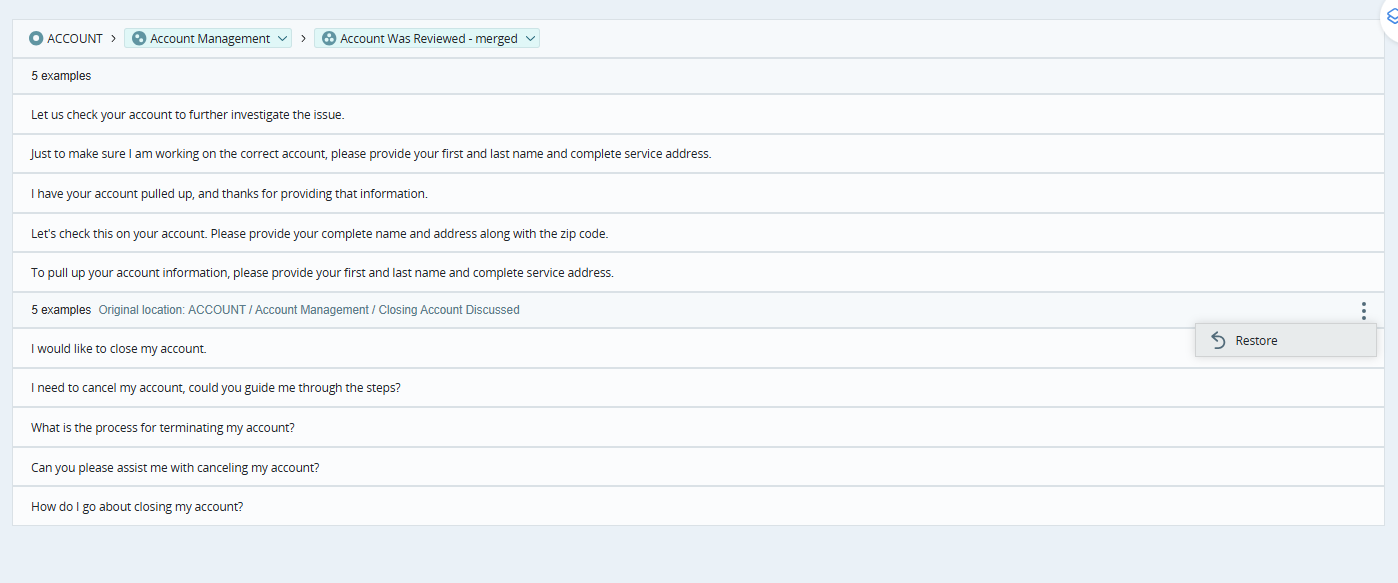
Click on the topic to view the information panel on the right.
-
The merged intents / actions will appear as shown below:
-
Click Restore
to revert back to the original intents and actions.Note: Move and merge options might not be available in all models or configurations.
Remove a topic or subtopic
To remove a topic or subtopic:
-
Locate the topic or subtopic and click Options
and then select Remove.
When you remove:
-
A topic – all its subtopics are also removed.
-
The last subtopic under a topic – the subtopic and its parent topic are removed.
To view removed items:
-
Select Status filter, and under Status, click Removed.
Restore a topic or subtopic
To restore a removed topic or subtopic:
-
Select Status filter, and under Status, click Removed.
All removed items are displayed.
-
Find the topic or subtopic you want to restore, and select the Restore
icon next to it.
When you restore a parent topic or subtopic:
-
Its related child items are restored as well, if they were removed together.
-
For example, restoring a category restores its topics and subtopics.
-
Restoring a topic can restore its subtopics, if they were removed with that topic.
-
Lock a subtopic
You can Lock specific subtopics to protect them from being modified or removed during future enrichment cycles. This is ideal for preserving seasonal topics (for example "Holiday Promotions") that may not be present in current data but are required for the model.
To lock/unlock a subtopic:
-
Select a subtopic and click the Lock (padlock) icon.
-
To unlock it, click the padlock icon on the locked subtopic and click Unlock
Note: Locked subtopics cannot be renamed, moved, merged, or removed.
Reviewing Examples
To understand the context of any subtopic, you can review real-world sentences identified by the AI:
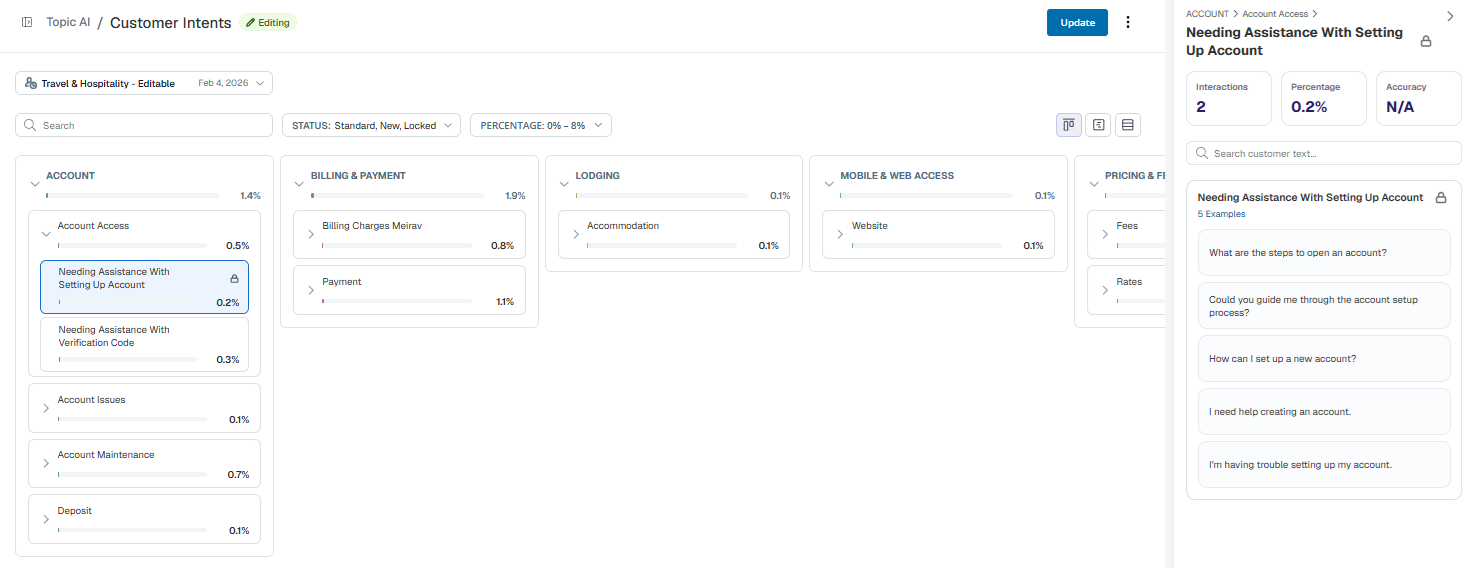
To review examples associated with a subtopic:
-
Click on a subtopic to open the Information Panel on the right.
-
Scroll to the Examples section.
-
View up to 50 sample sentences to confirm the categorization is accurate.