Some content on this page is for a product or feature in a public preview program. If you are not part of the preview and would like more information, contact your account representative.
This help page provides information about Omilia (DEVone) virtual agents. NiCE CXone also supports Omilia Voice Biometrics (DEVone).
Omilia is a third-party platform that provides voice and chat virtual agents. Virtual agents interpret what your contacts say or type in the chat window and respond appropriately. They do this using technologies such as:
- Speech-to-text
 Also called STT, this process converts spoken language to text. (STT)
- Text-to-speech Allows users to enter recorded prompts as text and use a computer-generated voice to speak the content. (TTS)
- Natural language processing Also called NLP, this process understands human speech or text and responds with human-like language. (NLP)
- Artificial intelligence (AI)
Virtual agents are flexible and can provide a range of functions to suit the needs of your organization. For example, you can design your virtual agent to handle a few simple tasks or to serve as a complex interactive agent.
NiCE CXonesupports using Omilia with voice and digital chat-based channels. For voice channels, setting up Omilia virtual agents integration requires assistance from a NiCE CXone account representative. If you're using Omilia with a text virtual agent, you can set up the integration yourself. Omilia voice virtual agents are in a public preview program, but Omilia text virtual agents are generally available.
Omilia is a DEVone integration. This means it is an integration with a NiCE partner's virtual agent.Omilia text virtual agents are the only DEVone integration that uses Virtual Agent Hub.Omilia voice virtual agents and all other DEVone integrations require assistance from NiCE Expert Services. Contact your account representative for more information.
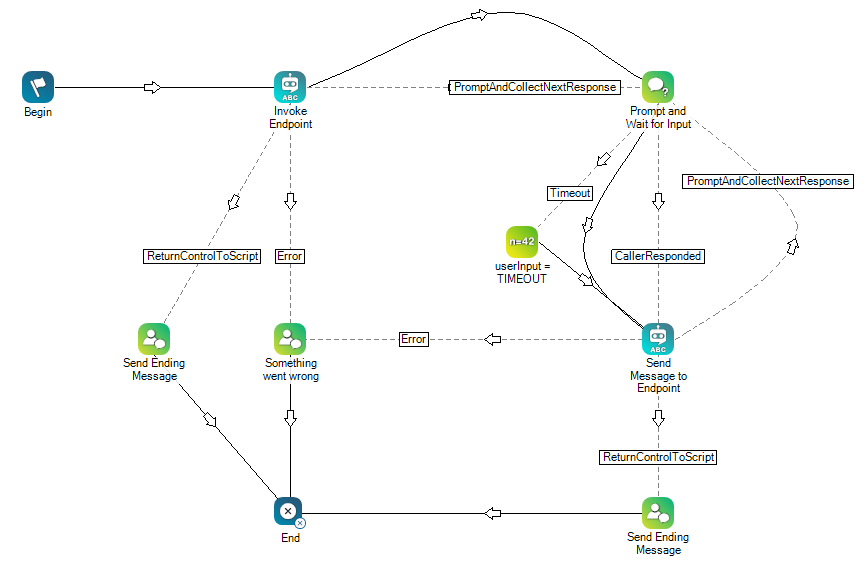
Conversation Flow for Voice and Text Virtual Agents
Components of an Integration
The integration of Omilia involves the following components:
- NiCE CXone: NiCE CXone must have a configured voice or digital chat-based channel Various voice and digital communication mediums that facilitate customer interactions in a contact center. to use with the integration.
- Virtual Agent Hub in NiCE CXone: Virtual Agent Hub holds the configuration information for connecting to your virtual agent A software application that handles customer interactions in place of a live human agent. provider, such as service account credentials. This includes choosing the options you want to use for transcription Written form of all or part of a voice or digital interaction., if your integration requires this service.
- Studio scripts: You need at least one script that includes a virtual agent Studio action. The action must be configured with the connection information for your virtual agent. The point of contact for the channel you're using with the integration must be configured to use this script.
- Omilia: Your virtual agent must be fully configured in the provider's platform. See the prerequisites for any specific requirements.
Rich Media Support for Text Virtual Agents
If your channel supports it, you can include rich Elements in digital messaging such as buttons, images, menus, and option pickers. content in the messages. Not every channel supports sending rich content, and the type of rich content that can be sent differs from channel to channel.
When you want to include rich media content in text virtual agent responses, configure it in your virtual agent's management console. It should go in the configuration for each response that will send the rich media.
Rich media content is sent as JSON. When building your rich media JSON, follow the schema for the digital channel you're using. The schemas are different for each channel. Find the JSON for the media content you want to use, then add it to the response message configurations that you create in
Voice Biometric Authentication
Content in this section is for a product or feature that's in a public preview program. If you are not part of the preview and would like more information, contact your account representative.
You can use voice biometrics to authenticate contacts The person interacting with an agent, IVR, or bot in your contact center. with
Contacts need to enroll to use voice biometric authentication. As a part of the enrollment process, they must give your organization permission to record their voice and use it for authentication. When you use this method with a virtual agent, you must configure and train your virtual agent to handle this intent The meaning or purpose behind what a contact says/types; what the contact wants to communicate or accomplish. during an interaction.
To use voice biometrics with your Omilia virtual agent, you can enable the voice biometrics miniapp in the Omilia platform. Talk to your Omilia account representative to learn more.
Custom Scripting Guidelines
Before integrating a virtual agent The meaning or purpose behind what a contact says/types; what the contact wants to communicate or accomplish., you need to know:
- Which script you want to add a virtual agent to.
-
The virtual agent Studio action you need to use.
- Where the Studio actions must be placed in your script flow.
- The configuration requirements specific to the virtual agent you're using.
- How to complete the script after adding the virtual agent action. You may need to:
- Add initialization snippets as needed to the script using Snippet actions. This is required if you want to customize your virtual agent's behavior.
- Re-configure the Studioaction Performs a process within a Studio script, such as collecting customer data or playing music. connectors to ensure proper contact flow and correct potential errors.
- Use the OnReturnControlToScript branch to handle hanging up or ending the interaction. If you use the Default branch to handle hanging up or ending an interaction, your script may not work as intended. StandardBot behaviors. You can learn more about handling the end of the interaction in the online help about
- Complete any additional scripting and test the script.
Ensure that all parameters in the virtual agent actions you add to your script are configured to pass the correct data. The online help pages for the actions cover how to configure each parameter.
Additionally, ensure that you completely configure your virtual agent on the provider side. Verify that it's configured with all possible default messages, including error messages or messages indicating an intent has been fulfilled.
You may be able to obtain template scripts from NiCE CXone Expert Services for use with virtual agent integrations. If you need assistance with scripting in Studio, contact your account representative, see the Technical Reference Guide section in the online help, or visit the NiCE CXone Community  site.
Supported Action for Text Virtual Agents
Use the
Textbot Exchange Action
The TextBot Exchange action is for complex virtual agents or for when you need to customize the virtual agent's behavior from turn to turn. It monitors the conversation between the contact and the virtual agent A software application that handles customer interactions in place of a live human agent. turn by turn. It sends each utterance What a contact says or types. to the virtual agent. The virtual agent analyzes the utterance for intent The meaning or purpose behind what a contact says/types; what the contact wants to communicate or accomplish. and context and determines which response to give. TextBot Exchange passes the response to the contact. When the conversation is complete, the action continues the script.