
Create and Manage Real-Time Routing Rules
Real-time routing rules let you create and adjust routing rules in real time without editing Studio scripts.
Create a Queue Depth Routing Rule
Required permissions: Routing Center > Real-Time Routing Rules > Manage, Routing Center > Real-Time Routing Rules > Config
Queue depth routing rules route based on the number of contacts The person interacting with an agent, IVR, or bot in your contact center. currently waiting in the queue for the specified ACD skill Used to automate delivery of interactions based on agent skills, abilities, and knowledge..
-
Click the app selector
 and select Routing Center > Real-Time Routing Rules.
 -
Click New Rule.
-
Select Queue Depth as the rule Type.
-
Enter a Name and an optional Description for the rule.
-
Click Add Skill and locate the skill you want to add. You can only assign one skill per routing rule. You can search for skills, use the filter
 , or sort the list by clicking the column headings.
 -
Click Next.
-
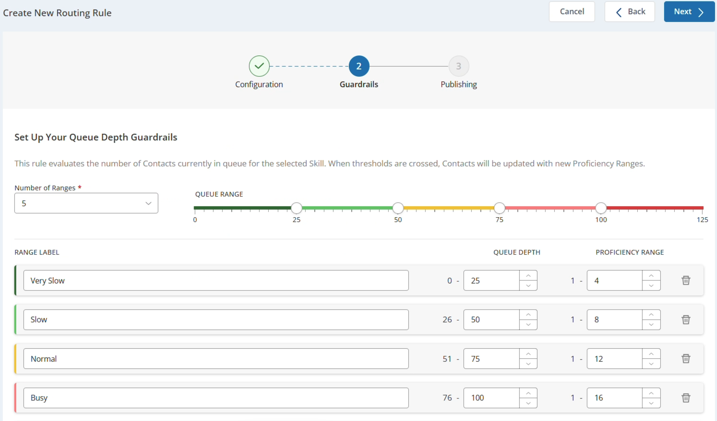
Determine how proficiency changes based on how many contacts are waiting with queue depth guardrails:
-
Select the Number of Ranges you want this rule to use from the drop-down. You must select between 2 and 5. The page updates to display the number of ranges you selected.
-
If you want to change the Range Label, enter a new label name. Default labels are Very Slow, Slow, Normal, Busy, and Very Busy. The labels you see depend on how many ranges you selected for this rule.
-
Enter the maximum Queue Depth for each range. You can do this by manually entering values, using the arrows, or adjusting the slider at the top. If the minimum queue depth for the bottom range exceeds 125, the slider disappears from the page. You can specify larger queue depths, but you must enter the numbers manually.
As you change the maximum queue depth for one range, the minimum queue depth for the next range automatically updates to be one more than the current maximum value.
-
Select a Proficiency Range for each queue depth range. The lower the number, the more proficient the agent. For example, 1 is the most proficient and 20 is the least proficient. The proficiency range must be less than or equal to 20 for each range.
-
- Click Next.
- Decide which groups you want to be able to update this routing rule.
- Click Add Groups.
- Select one or more groups from the list.
- Click Confirm.
- Click Create. After you create a rule, you must activate it to impact routing.
Create a Time in Queue Routing Rule
Required permissions: Routing Center > Real-Time Routing Rules > Manage, Routing Center > Real-Time Routing Rules > Config
Time in queue routing rules route based on how long the contact The person interacting with an agent, IVR, or bot in your contact center. has been waiting for an agent for the specified ACD skill Used to automate delivery of interactions based on agent skills, abilities, and knowledge..
-
Click the app selector
and select Routing Center > Real-Time Routing Rules. -
Click New Rule.
-
Select Time in Queue as the rule Type.
-
Enter a Name and an optional Description for the rule.
-
Click Add Skill and locate the skill you want to add. You can only assign one skill per routing rule. You can search for skills, use the filter
, or sort the list by clicking the column headings. -
Click Next.
-
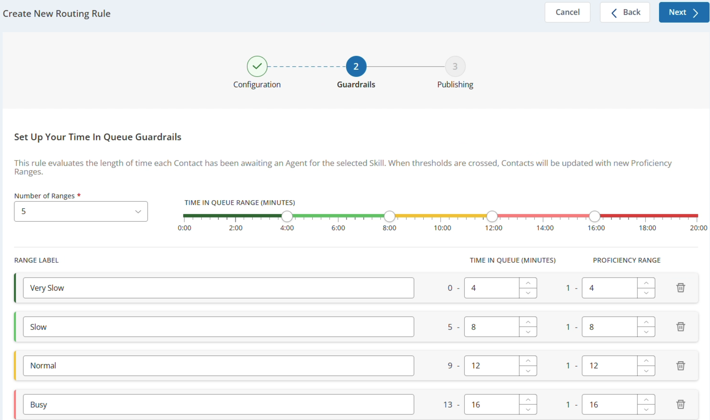
Determine how proficiency changes based on how long the contact has been waiting with time in queue guardrails:
-
Select the Number of Ranges you want this rule to use from the drop-down. You must select between 2 and 5. The page updates to display the number of ranges you selected.
-
Change the Range Label for each range. Default labels are Very Slow, Slow, Normal, Busy, and Very Busy. The labels you see depend on how many ranges you selected for this rule.
-
Enter the maximum number of Time in Queue minutes for each range. You can do this by manually entering values, using the arrows, or adjusting the slider at the top. If the minimum time in queue for the bottom range exceeds 20 minutes, the slider disappears from the page. You can specify longer time in queue ranges, but you must enter the numbers manually.
As you change the maximum time in queue for one range, the minimum time in queue for the next range automatically updates to be one more than the current maximum value.
-
Select a Proficiency Range for each time in queue range. The lower the number, the more proficient the agent. For example, 1 is the most proficient and 20 is the least proficient. The proficiency range must be less than or equal to 20 for each range.
-
- Click Next.
- Decide which groups you want to be able to update this routing rule.
- Click Add Groups.
- Select one or more groups from the list.
- Click Confirm.
- Click Create. After you create a rule, you must activate it to impact routing.
Create an Available Agents Routing Rule
Required permissions: Routing Center > Real-Time Routing Rules > Manage, Routing Center > Real-Time Routing Rules > Config
Available agents routing rules route based on how many agents are available for the specified ACD skill Used to automate delivery of interactions based on agent skills, abilities, and knowledge..
-
Click the app selector
and select Routing Center > Real-Time Routing Rules. -
Click New Rule.
-
Select Available Agents as the rule Type.
-
Enter a Name and an optional Description for the rule.
-
Click Add Skill and locate the skill you want to add. You can only assign one skill per routing rule. You can search for skills, use the filter
, or sort the list by clicking the column headings. -
Click Next.
-
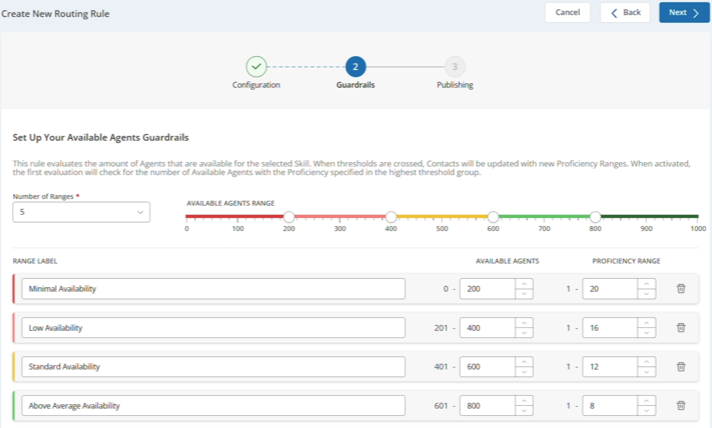
Determine how proficiency changes based on how many agents are available for the selected skill when the rule evaluates the queue:
-
Select the Number of Ranges you want this rule to use from the drop-down. You must select between 2 and 5. The page updates to display the number of ranges you selected.
-
Change the Range Label for each range. Default labels are Minimal Availability, Low Availability, Standard Availability, Above Average Availability, and High Availability. The labels you see depend on how many ranges you selected for this rule.
-
Enter the maximum number of Available Agents for each range. You can do this by manually entering values, using the arrows, or adjusting the slider at the top. If the minimum number of agents for the bottom range exceeds 1000, the slider disappears from the page. You can specify a larger number of available agents, but you must enter the numbers manually.
As you change the maximum number of available agents for one range, the minimum number for the next range automatically updates to be one more than the current maximum value.
-
Select a Proficiency Range for each range. The lower the number, the more proficient the agent. For example, 1 is the most proficient and 20 is the least proficient. The proficiency range must be less than or equal to 20 for each range.
-
- Click Next.
- Decide which groups you want to be able to update this routing rule.
- Click Add Groups.
- Select one or more groups from the list.
- Click Confirm.
- Click Create. After you create a rule, you must activate it to impact routing.